
Add PDF to Word Document: 3 Easy Methods
Embed a PDF as an object, convert it to Word, or open it in Microsoft Word — then choose what fits your document.
Want to add a PDF to a Word document without retyping it? You can insert the PDF as an attachment, convert it into a Word file, or open it in Microsoft Word and copy the parts you need.
The right method depends on the result you need. If readers should open the original PDF, embed it as an object. If you need the content inside your document, converting with the PDF to Word converter is usually more practical.
How to add a PDF to a Word document as an attachment
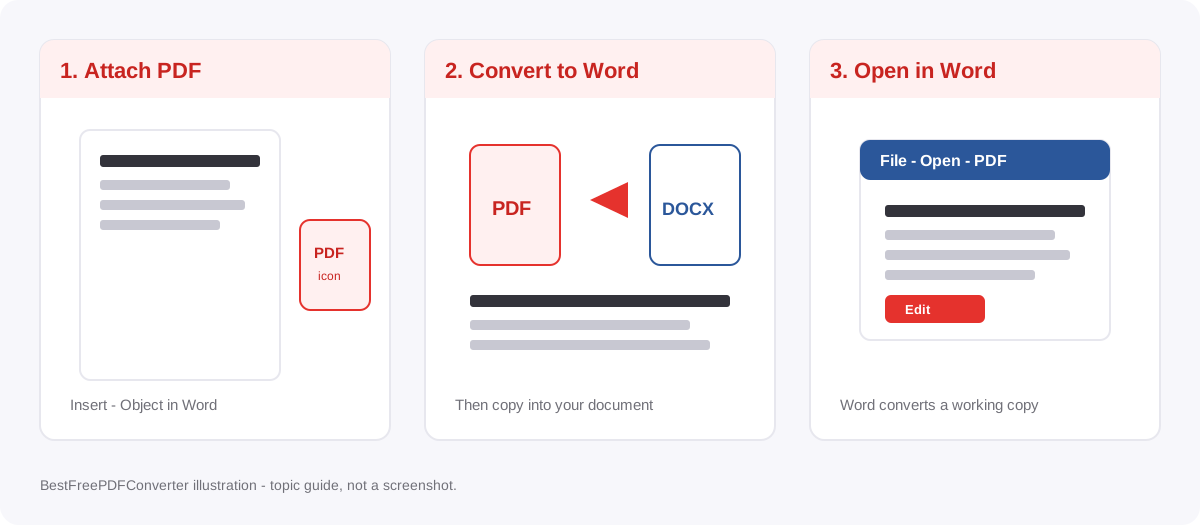
Microsoft Word can embed a PDF file inside a document so readers can open the original file from an icon or preview.
- Open your document in Microsoft Word.
- Place the cursor where you want to insert the PDF.
- Select Insert → Object.
- Choose Create from File.
- Click Browse and select your PDF.
- Check Display as icon if you want a clickable attachment.
- Click OK.
Readers using compatible desktop software can open the embedded file by double-clicking its icon. Embedding a PDF does not turn every page into editable Word text.
How to insert PDF content into Word using a free converter
If you want to reuse PDF content in an existing Word document, convert the PDF to DOCX first, then copy the sections you need.
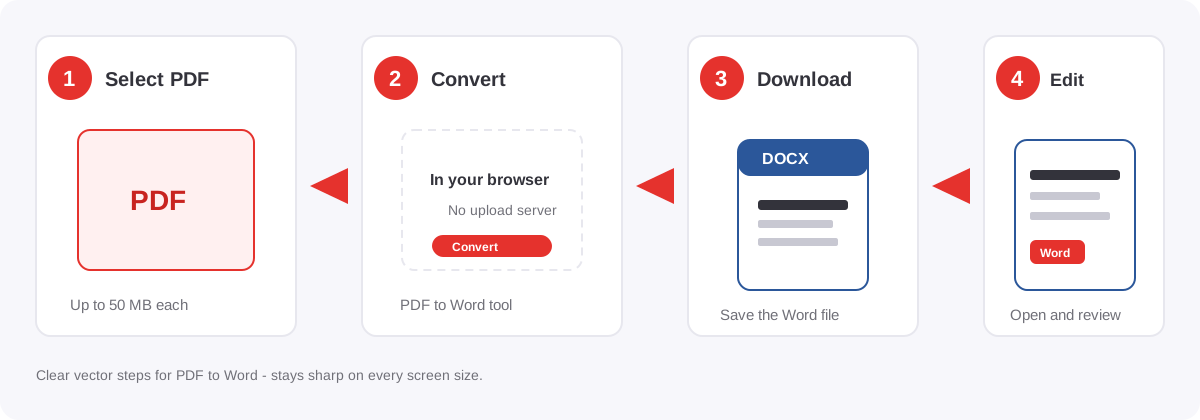
Step 1: Open the PDF to Word converter
Visit the free PDF to Word converter on BestFreePDFConverter.com. The tool runs in your browser and does not require desktop conversion software.
Step 2: Select your PDF
Choose the PDF from your device. The converter accepts files up to 50 MB each and up to 20 PDFs per batch.
Step 3: Convert PDF to Word
Select Convert to Word and download the DOCX when conversion finishes.
Step 4: Add the content to your Word document
Open the DOCX in Microsoft Word or another compatible editor. Copy the content you need, paste it into your existing document, and review the layout before you save.
The converter keeps PDF pages as images and places available selectable text underneath. The output may need adjustments. Scanned text does not become fully editable by itself.
How to open a PDF directly in Microsoft Word
Supported desktop versions of Microsoft Word can convert many PDFs into editable documents.
- Open Microsoft Word.
- Select File → Open.
- Browse to your PDF file.
- Click Open.
- Confirm the conversion when Word displays a message.
- Copy the required content into your original Word document.
This method works best with text-based PDFs. Complex layouts, scanned pages, and tables may not convert perfectly. Microsoft documents the process in its guide to editing a PDF in Word.
Can you insert multiple PDF pages into Word?
Yes. The best approach depends on how you want the pages to appear.
- As an attachment: Embed the PDF as an object. Readers can open the complete file, but its pages do not appear as separate Word pages.
- As document content: Convert the PDF to Word, then copy or insert the required sections.
- As images: Convert PDF pages with the PDF to JPG tool, then use Insert → Pictures. The pages stay visible, but the text is not directly editable.
For a report that should show several readable pages inline, converting the file or inserting page images is usually better than embedding an attachment.
Why does PDF formatting change in Word?
PDF and Word handle page layouts differently, so conversion can change some elements. That is normal and not a sign that the file was damaged.
- Fonts changing: The original fonts may not be available on your computer.
- Tables shifting: Complex table layouts may need manual adjustment.
- Page breaks moving: Converted content may flow differently across pages.
- Scanned text staying uneditable: Image-only PDFs need optical character recognition (OCR) before the text can be edited.
Always review the converted document before you share or submit it.
Privacy and limits on this site
The BestFreePDFConverter PDF to Word tool processes files in your browser. It does not upload your PDF to a conversion server for this step. Read the privacy policy before you convert contracts or other confidential files. Browser processing does not replace your own care when you share the download.
- Maximum 50 MB per file and up to 20 files per batch.
- No account is required to use the converter.
- Keep the original PDF until you are satisfied with the result.
- Need a PDF again later? Use the Word to PDF converter.
Common questions
Yes. Use Insert → Object → Create from File to embed the PDF inside a Word document.
Conclusion
To add a PDF to a Word document, choose the method that matches your goal. Use Insert → Object when you want to attach the original PDF. If you need to reuse its contents, convert the PDF to Word and insert the sections you need.
For a simple conversion option, try the free PDF to Word converter and review the output before you add it to your document.