
How Can I Open PDF File in Word? Easy Step-by-Step Guide
Open a PDF in Microsoft Word or convert it online to DOCX first, then review layout limits before you edit.
If you are asking how you can open a PDF file in Word, the simplest path is to open the PDF directly in Microsoft Word. Word can convert many PDF files into editable documents so you can update text, fix errors, and save the result as a Word file.
You can also use a free online PDF to Word converter when you prefer a browser-based step before you open the file in Word. Both methods are covered below.
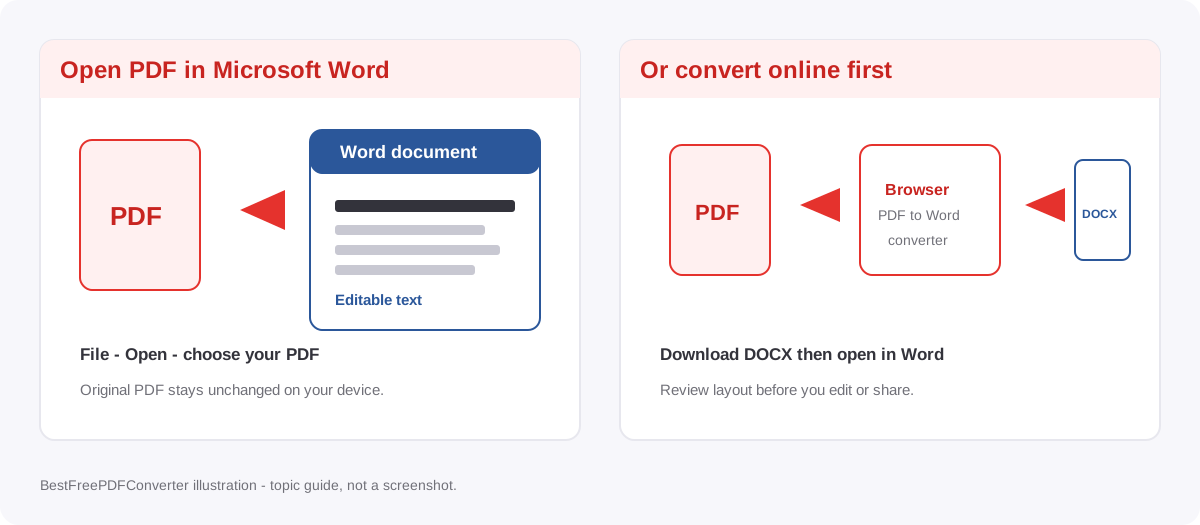
How can I open a PDF file in Word directly?
Microsoft Word can open and convert PDF documents without a separate converter app. Follow these steps in a supported desktop version of Word:
- Open Microsoft Word on your computer.
- Click File → Open.
- Select Browse and locate your PDF file.
- Choose the PDF and click Open.
- Word will explain that it will convert the PDF into an editable document.
- Click OK to continue.
When conversion finishes, review and edit the document. To save it as a Word file, select File → Save As, choose Word Document (.docx), and save it where you want.
Your original PDF remains unchanged. Conversion works best with text-based documents. Complex tables, images, and page layouts may not look exactly the same afterward.
How to open a PDF in Word using a free online converter
If you want to convert the PDF before you open it in Word, use a browser-based tool.
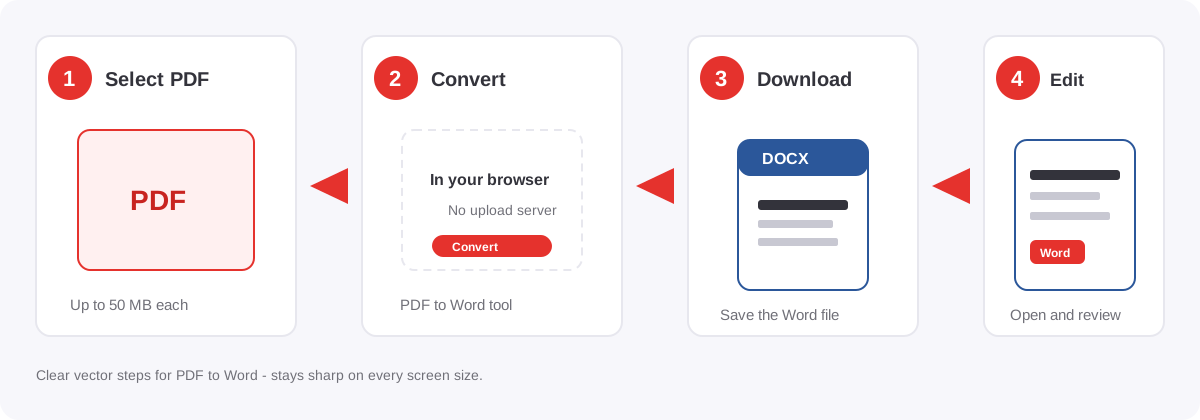
Step 1: Open the PDF to Word converter
Visit the free PDF to Word converter. You can use it in the browser without installing additional software.
Step 2: Select your PDF file
Choose the PDF from your device. The tool supports files up to 50 MB each and up to 20 PDF files per batch.
Step 3: Convert PDF to Word
Select Convert to Word and wait until conversion finishes.
Step 4: Download and open the DOCX file
Download the .docx file, then open it in Microsoft Word or another compatible editor. Review the text and layout before you make changes.
The converter includes PDF pages as images and places available selectable text underneath them. Scanned pages without selectable text will not automatically become editable.
Why does my PDF look different in Microsoft Word?
PDF and Word use different document models. When Word converts a PDF, it tries to recreate the original as editable content. You may notice:
- Changed page breaks: Text can move onto different pages.
- Different fonts: Some fonts may be substituted.
- Shifted tables: Complex tables may need adjustment.
- Uneditable scanned pages: Image-based PDFs may need OCR before the text can be extracted.
For better results, start with a PDF that has selectable text and check the converted document carefully. Microsoft also explains these limits in its guide to opening PDFs in Word. If you only need small text changes inside a PDF and want to keep the layout, try the Edit PDF tool instead of a full conversion.
Privacy and limits on this site
Conversion on BestFreePDFConverter runs in your browser for this tool. Files are not sent to a conversion server for that step. Read the privacy policy before you convert sensitive documents. Always keep your original PDF until you confirm the Word file is usable.
- Up to 50 MB per file and 20 files per batch.
- No sign-up is required to convert.
- To go back to PDF later, use the Word to PDF converter.
Common questions
Yes. Supported desktop versions of Microsoft Word can open PDF files and convert their contents into Word documents.
Conclusion
You can open a PDF file in Word in two straightforward ways. If you have Microsoft Word, use File → Open and select your PDF. If you prefer an online step first, use the free PDF to Word converter to create a DOCX file.
Always review the converted document before you edit or share it, especially when the original PDF has complex formatting.