
How to Create Editable PDF From Word: Easy Step-by-Step Guide
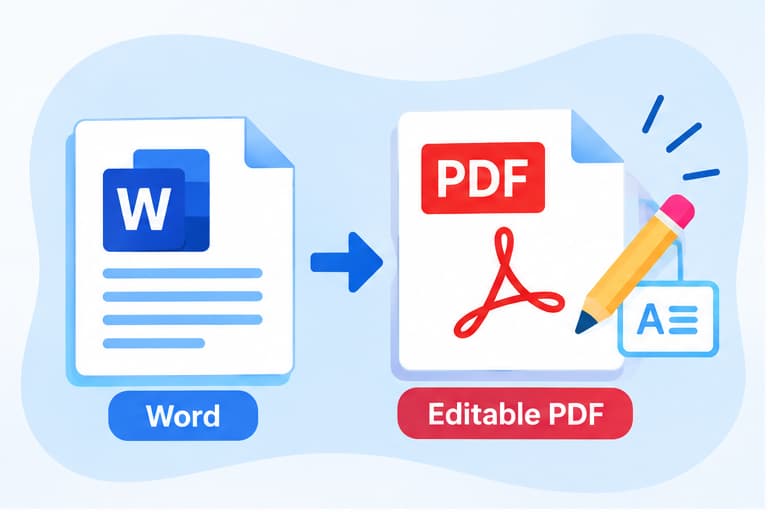
Wondering how to create editable PDF from Word? Start by saving your Word document as a PDF. You can then open it in a PDF editor to add text, images, or annotations. If you want people to type directly into form fields, you'll need an additional step to create a fillable PDF.
The right method depends on what you want to edit. Here's how to create a PDF from Word and choose the appropriate editing option.
How to Create Editable PDF From Word in Microsoft Word
Microsoft Word lets you export documents as PDFs while keeping the original Word file available for future changes.
Follow these steps:
-
Open your document in Microsoft Word.
-
Click File → Save As or Save a Copy.
-
Choose where to save the file.
-
Select PDF (.pdf) from the file format menu.
-
Click Save.
Your PDF is now ready to open in a compatible PDF editor.
Important: Saving a Word document as PDF does not automatically create interactive text fields. It creates a PDF that can be viewed and modified using suitable software.
How to Edit a PDF After Converting It From Word
If you need to add information to an existing PDF, you can use a browser-based editor.
Step 1: Open the Free PDF Editor
Visit the Free Online PDF Editor.
The tool allows you to make basic PDF changes directly in your browser.
Step 2: Select Your PDF
Choose the PDF you exported from Microsoft Word.
The editor supports PDF files up to 50 MB.
Step 3: Make Your Changes
Use the available editing tools to:
-
Add text to the PDF.
-
Insert images.
-
Highlight important information.
-
Add notes and annotations.
These features are useful when you want to add information without rebuilding the entire document.
Step 4: Download the Edited PDF
Save your changes and download the updated PDF.
Open the downloaded file to confirm that the new content appears correctly.
How to Create a Fillable PDF From Word
If you want someone to enter information into text boxes or select checkboxes, you need a fillable PDF form, not just a regular PDF.
You can create one using a PDF form editor such as Adobe Acrobat.
-
Create your form layout in Microsoft Word.
-
Save the document as a PDF.
-
Open the PDF in Adobe Acrobat.
-
Select All Tools → Prepare a Form.
-
Review the automatically detected fields and add or adjust fields as needed.
-
Save the fillable PDF.
-
Test the form by entering sample information.
This method is useful for application forms, questionnaires, and registration documents.
Official reference: Adobe Acrobat — Create PDF Forms
Editable PDF vs. Fillable PDF: What's the Difference?
|
PDF type |
What you can do |
|
Regular PDF |
View, print, and share the document |
|
Editable PDF |
Modify supported content using PDF editing software |
|
Fillable PDF |
Enter information into interactive form fields |
Choose an editable PDF when you need to update document content. Choose a fillable PDF when you want other people to complete a form.
Why Can't I Edit My PDF After Saving It From Word?
A PDF may open in a viewer that doesn't support editing.
If you cannot make changes, check the following:
-
You're using a PDF viewer: Open the file in a PDF editor.
-
The PDF is protected: Editing restrictions may prevent changes.
-
The page contains images: Scanned or image-based text may require OCR before it can be edited as text.
-
You need to change existing paragraphs: Edit the original Word document and export a new PDF, or use software that supports editing existing PDF text.
For substantial revisions, updating the original Word document is usually the simplest way to maintain consistent formatting.
Frequently Asked Questions
Can I create an editable PDF from Word for free?
Yes. You can save your Word document as a PDF and use a free PDF editor for supported changes, such as adding text or annotations.
Does Microsoft Word create fillable PDF forms?
Saving a Word document as PDF does not automatically turn Word form fields into interactive PDF fields. A dedicated PDF form editor may be required.
Can I edit PDF text after converting from Word?
Yes, with suitable PDF editing software. For major changes, editing the original Word document and exporting it again is often easier.
Can I edit a PDF online without installing software?
Yes. You can use the Free Online PDF Editor to add text, images, and annotations directly in your browser.
Conclusion
Now you know how to create editable PDF from Word using Microsoft Word and a PDF editor.
First, save your Word document as a PDF. Then use an editor to make supported changes. If you need interactive text fields or checkboxes, create a fillable PDF using dedicated form-editing software.
For quick changes, the Best Free PDF Editor lets you add content and download your updated PDF.