
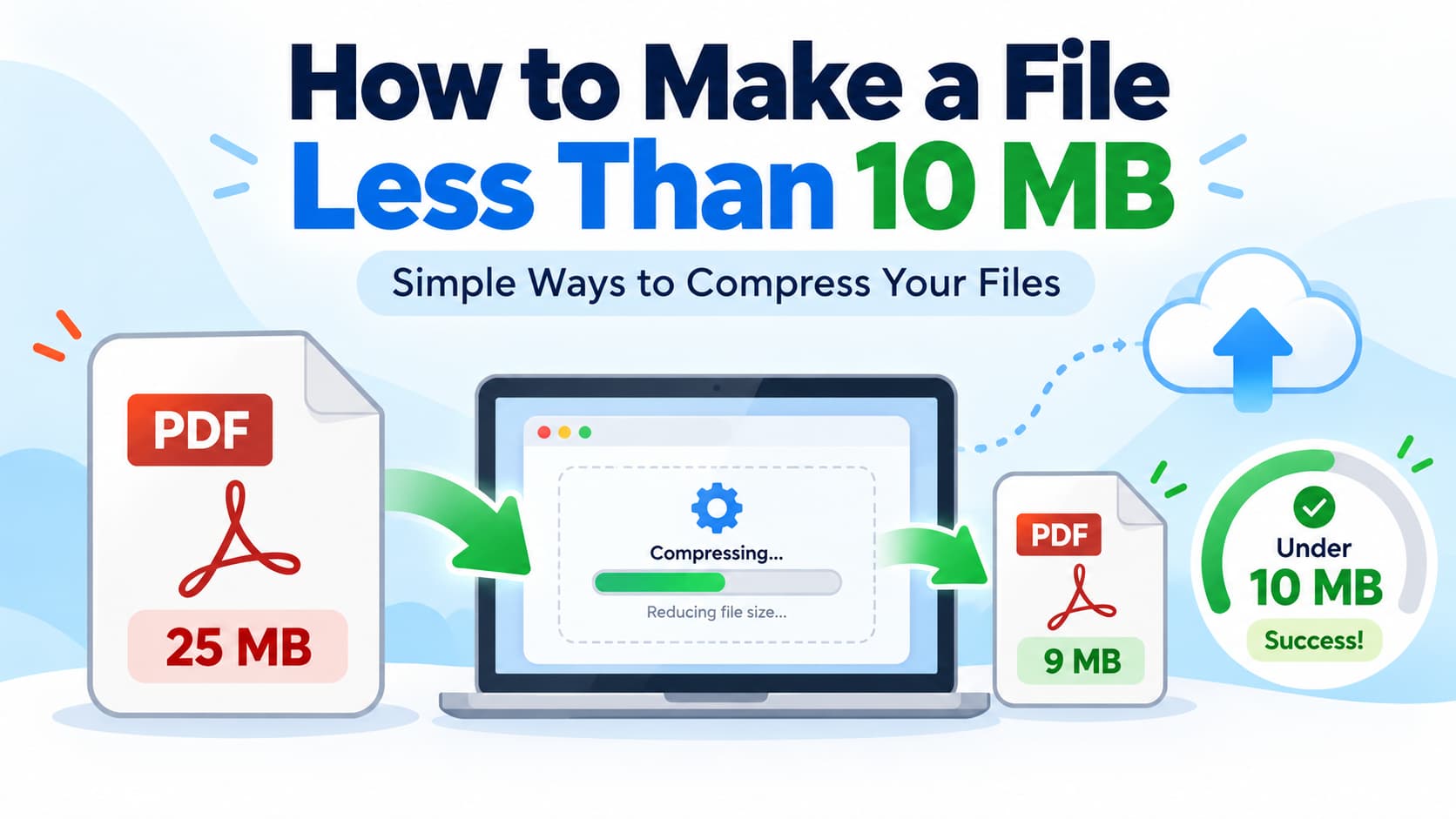
How to Make a File Less Than 10 MB: Easy Step-by-Step Guide
If you're wondering how to make a file less than 10 MB, the easiest solution is to compress it or remove unnecessary content. Many job application websites, university portals, and online forms won't accept files larger than 10 MB. Fortunately, you can reduce the size of PDFs, images, and other documents without making them difficult to read.
The best method depends on the file type. For PDFs, an online compression tool is usually the quickest option. For images, resizing or changing the format can help. This guide explains how to get your file below 10 MB using simple, practical steps.
How to Make a File Less Than 10 MB Online
If your document is a PDF, you can reduce its size directly in your browser. This is especially helpful when you're trying to upload a resume, scanned document, assignment, or application form.
Step 1: Open a PDF Compression Tool
Visit the free online PDF compressor to make your PDF smaller.
The tool works in your browser, so you don't need to install additional software. According to the website, PDF processing happens on your device rather than uploading your document to its servers.
Step 2: Select Your PDF File
Click the file selection area or drag and drop your PDF into the tool.
You can select a PDF up to 50 MB. If your file is larger than that, you'll need to reduce it using another method before adding it.
Step 3: Choose a Compression Quality
The compressor offers three quality settings:
-
High: Keeps pages sharper but produces a larger file.
-
Medium: Balances document quality and file size.
-
Low: Prioritizes a smaller file size.
Start with Medium if you want to keep your document readable while reducing its size. If the result is still above 10 MB, try Low.
Step 4: Compress the PDF
Click the Compress PDF button to start processing.
The amount of reduction depends on the PDF's content. Documents containing large photographs or scanned images may shrink considerably, while already optimized files may show only a small improvement.
Step 5: Download and Check the File
Download your compressed PDF and check its size.
If it's below 10 MB, you can upload it to the website or form that requires a smaller file.
Before submitting, open the PDF and confirm that all pages, images, and text remain clear.
How to Reduce a PDF File Size to Under 10 MB
Not every PDF can be reduced below 10 MB with one click. Some documents contain high-resolution images, scanned pages, or unnecessary content that increases their size.
If regular compression doesn't produce a small enough file, try the following methods.
1. Remove Unnecessary Pages
A PDF containing extra pages may be larger than necessary.
Review your document and remove blank pages, duplicates, or sections that aren't needed for your submission.
For example, if your document contains 30 pages but only 20 are required, removing the extra pages could reduce its size.
Don't delete pages that are required for your application or document.
2. Reduce Image Resolution
Large images are a common reason PDFs become oversized.
If you're creating a PDF from Word, PowerPoint, or another editable document, reduce the resolution of unnecessarily large pictures before exporting.
For ordinary on-screen reading, image resolutions around 150 DPI may be sufficient. Documents with fine details or professional printing requirements may need higher resolution.
3. Compress Scanned Documents
Scanned PDFs often contain a separate image for every page. These files can become especially large when scanned in full color at high resolution.
To create a smaller scanned PDF:
-
Use grayscale instead of color when color isn't required.
-
Scan at approximately 150–200 DPI for ordinary readable text, increasing the resolution when necessary.
-
Crop unnecessary borders.
-
Avoid scanning blank pages.
Always check small text, stamps, and signatures after compression to ensure they remain readable.
4. Export the Original Document Again
If you still have the original Word or PowerPoint file, creating a new PDF may be more effective than repeatedly compressing an existing one.
Remove oversized pictures, choose appropriate image quality, and export the document as a PDF.
When available, select an export option designed for smaller files or online distribution.
How to Make Different File Types Less Than 10 MB
PDF compression works well for PDF documents, but other file formats need different approaches.
|
File type |
Recommended method |
|
|
Compress images and optimize the document |
|
JPG or PNG |
Resize images or reduce image quality |
|
Word document |
Compress pictures and remove unnecessary media |
|
PowerPoint |
Compress inserted images and videos |
|
Video |
Reduce resolution, bitrate, or duration |
|
Multiple files |
Create a ZIP archive when permitted |
How to Make an Image Less Than 10 MB
If a photo is too large, you may not need its original resolution.
For example, an image measuring 6000 × 4000 pixels could be resized to 2000 × 1333 pixels if the smaller dimensions are suitable for your purpose.
You can also save a photograph as a JPG with moderate compression. For suitable images, a WebP version may take up less storage.
Avoid reducing the resolution so much that important details become unclear.
How to Reduce a Word Document Below 10 MB
Word documents can become large when they include photographs, screenshots, and other media.
To reduce the size:
-
Open the document in Microsoft Word.
-
Select an inserted image.
-
Find the Compress Pictures option under the picture formatting tools.
-
Choose a suitable resolution and apply compression.
-
Save a new copy of the document.
You can also remove unused images or embedded objects that aren't needed.
If the receiving website accepts PDFs, exporting an optimized PDF may provide another way to reduce the size.
How to Make a ZIP File Smaller Than 10 MB
Creating a ZIP archive can reduce the combined size of files, particularly text-based documents.
On Windows, select your files, right-click, and choose the available ZIP compression option. On a Mac, right-click the selected files and choose Compress.
However, ZIP compression doesn't always make files significantly smaller. JPG images, MP4 videos, and many PDFs are already compressed.
Also, check whether the receiving website accepts ZIP files before using this method.
How Much Compression Is Needed to Get Under 10 MB?
The larger your original file, the more compression you'll need.
The following examples show the approximate size reduction required to reach a 10 MB target.
|
Original file size |
Reduction needed to reach 10 MB |
|
12 MB |
16.7% |
|
15 MB |
33.3% |
|
20 MB |
50% |
|
25 MB |
60% |
|
50 MB |
80% |
These are mathematical targets, not guaranteed compression results.
For example, reducing a 20 MB PDF to 10 MB requires cutting its size in half. Whether this is possible depends on the content and how much compression has already been applied.
If a website requires a file less than 10 MB, aim for approximately 9 MB rather than exactly 10 MB. This gives you some room for differences in how websites measure file sizes.
How to Reduce File Size Without Losing Too Much Quality
Making a file smaller often involves balancing size against appearance.
For documents containing mostly text, compression may have very little visible effect. Files containing detailed images or scanned pages are more likely to lose some sharpness.
To preserve document quality:
-
Start with medium compression rather than the strongest setting.
-
Keep the original file as a backup.
-
Avoid unnecessarily reducing image resolution.
-
Check charts, small text, and signatures after compression.
-
Use stronger compression only when the file remains above the required limit.
If the PDF contains important legal documents, identification details, or confidential information, review the privacy practices of any tool you use. For sensitive files, an offline application may be preferable.
Why Is My File Still Larger Than 10 MB After Compression?
Sometimes a file remains too large even after you compress it.
This usually happens because the document contains high-resolution images, complex graphics, embedded attachments, or data that is already efficiently compressed.
A PDF made mostly of selectable text may not shrink much because text generally requires relatively little storage.
If the result remains over 10 MB, try adjusting the original document, reducing image dimensions, or removing genuinely unnecessary content.
You can also split a PDF into smaller documents, but only if the receiving website allows multiple uploads. If it requires one complete document, splitting it may not solve the problem.
Frequently Asked Questions
Can I make a 20 MB PDF less than 10 MB?
Yes, it's possible, but not guaranteed. A 20 MB PDF needs a reduction of more than 50% to become smaller than 10 MB. Image-heavy PDFs may compress enough, while already optimized documents may not.
How do I compress a PDF under 10 MB for free?
Use a free PDF compression tool, select your document, choose a compression setting, and download the result. Check the downloaded file's size before submitting it.
Can I reduce a PDF to 10 MB without losing quality?
You may be able to reduce the size without noticeable quality loss, especially if the document contains unnecessary data. However, stronger image compression can reduce clarity, so completely lossless results aren't guaranteed.
How do I make a file less than 10 MB on my phone?
Open a browser-based compression tool on your Android phone or iPhone, select your PDF, compress it, and save the smaller version. For photographs, you can also use an image resizing app or export a lower-resolution copy.
Why won't my 10 MB file upload?
Some websites require files to be strictly below 10 MB rather than equal to 10 MB. Others may use different size calculations or impose restrictions on file formats. Try reducing the file to approximately 9 MB and confirm that its format is supported.
Conclusion
Learning how to make a file less than 10 MB is straightforward once you choose the right method for your file type.
For PDFs, start with compression and check the result. If the document is still too large, reduce unnecessary images, remove extra pages, or export a smaller version from the original document.
If you need a simple way to get started, use the free PDF compression tool to reduce your document size directly in your browser. Always confirm that the finished file is below 10 MB and remains readable before uploading it.