
How to Save Word Doc as PDF: Easy Step-by-Step Guide
Wondering how to save Word doc as PDF without changing your original document? You can use Microsoft Word's built-in Save As feature, download a PDF through Google Docs, or convert your DOCX file with a free online tool.
Saving a Word document as a PDF is useful when sharing resumes, assignments, reports, or other files that need a consistent layout. Here's how to do it.
How to Save Word Doc as PDF in Microsoft Word
Microsoft Word lets you save a document as a PDF without installing additional software.
-
Open your document in Microsoft Word.
-
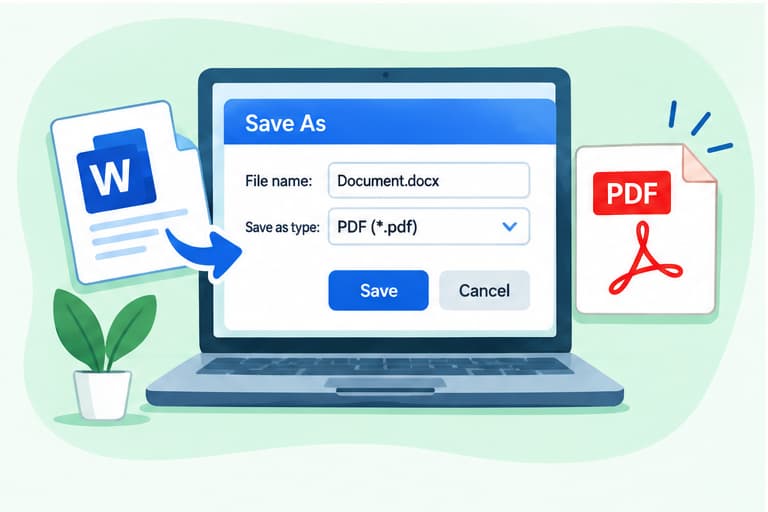
Click File → Save As or Save a Copy.
-
Select the folder where you want to save the file.
-
Open the Save as type or File Format menu.
-
Choose PDF (.pdf).
-
Click Save.
Your PDF will be saved in the selected folder. The original Word document remains available for editing.
On supported Windows versions, you can also use File → Export → Create PDF/XPS.
How to Convert Word to PDF Online for Free
If you don't have Microsoft Word installed, an online converter is another option.
Step 1: Open the Word to PDF Converter
Visit the free Word to PDF Converter.
The tool converts DOCX documents directly in your browser without requiring an account.
Step 2: Upload Your Word Document
Select your .docx file from your computer.
The converter supports files up to 50 MB each and allows up to 20 files per batch.
Note: Older .doc files are not supported. Save them as DOCX first or export them directly from Microsoft Word.
Step 3: Convert Your DOCX File
Click Convert to PDF.
The tool processes your document in the browser. The first conversion may require downloading its document-processing engine.
Step 4: Download Your PDF
Once the conversion status shows Ready, click Download.
If you converted multiple Word files, use Download all. Each document becomes a separate PDF.
Open the downloaded file to check the text, tables, images, and page layout.
How to Save a Word Document as PDF in Google Docs
You can also convert a Word document using Google Docs.
-
Upload your Word file to Google Drive.
-
Open the document with Google Docs.
-
Click File → Download.
-
Select PDF Document (.pdf).
-
Find the saved PDF in your Downloads folder.
This method is useful if you already work with Google Drive or don't have Microsoft Word on your computer.
Why Does My Word Document Look Different After Saving as PDF?
Most documents convert without major issues, but certain elements may appear differently.
Common problems include:
-
Changed fonts: Fonts unavailable during conversion may be replaced.
-
Shifted page breaks: Different document rendering methods can affect pagination.
-
Tables moving: Complex tables may need adjustments.
-
Images changing position: Floating pictures or text wrapping may not appear exactly as expected.
For the best results, check the original document's formatting before conversion and review the PDF afterward.
If you need the PDF for printing, verify the page size, margins, and orientation.
Frequently Asked Questions
Can I save a Word document as PDF for free?
Yes. You can use Microsoft Word's PDF export feature if you have Word, Google Docs, or a free online Word to PDF converter.
Can I convert DOCX to PDF without Microsoft Word?
Yes. A browser-based DOCX to PDF converter can create a PDF without requiring Microsoft Word.
Does saving Word as PDF change the original document?
No. The standard Save As or conversion process creates a separate PDF while keeping the original Word file available.
Can I save multiple Word documents as PDFs?
Yes. The Best Free PDF Converter supports up to 20 DOCX files per batch, with each converted into a separate PDF.
Conclusion
Now you know how to save Word doc as PDF using Microsoft Word, Google Docs, or an online converter.
If Microsoft Word is installed, use its Save As feature. Otherwise, the Best Free Word to PDF Converter offers a simple way to convert DOCX files in your browser.
Always check the finished PDF before sharing or printing it.